Portrait ready to edit in PixelTransform

Convert, clean, and enhance images online.

Remove backgrounds, resize, compress, convert, and polish images without switching between tools.

or drop an image here

Paste from clipboard · JPG, PNG, WebP, AVIF · up to 20 MB

Preview before you export.

Inspect the source and transparency preview before moving to the next edit.

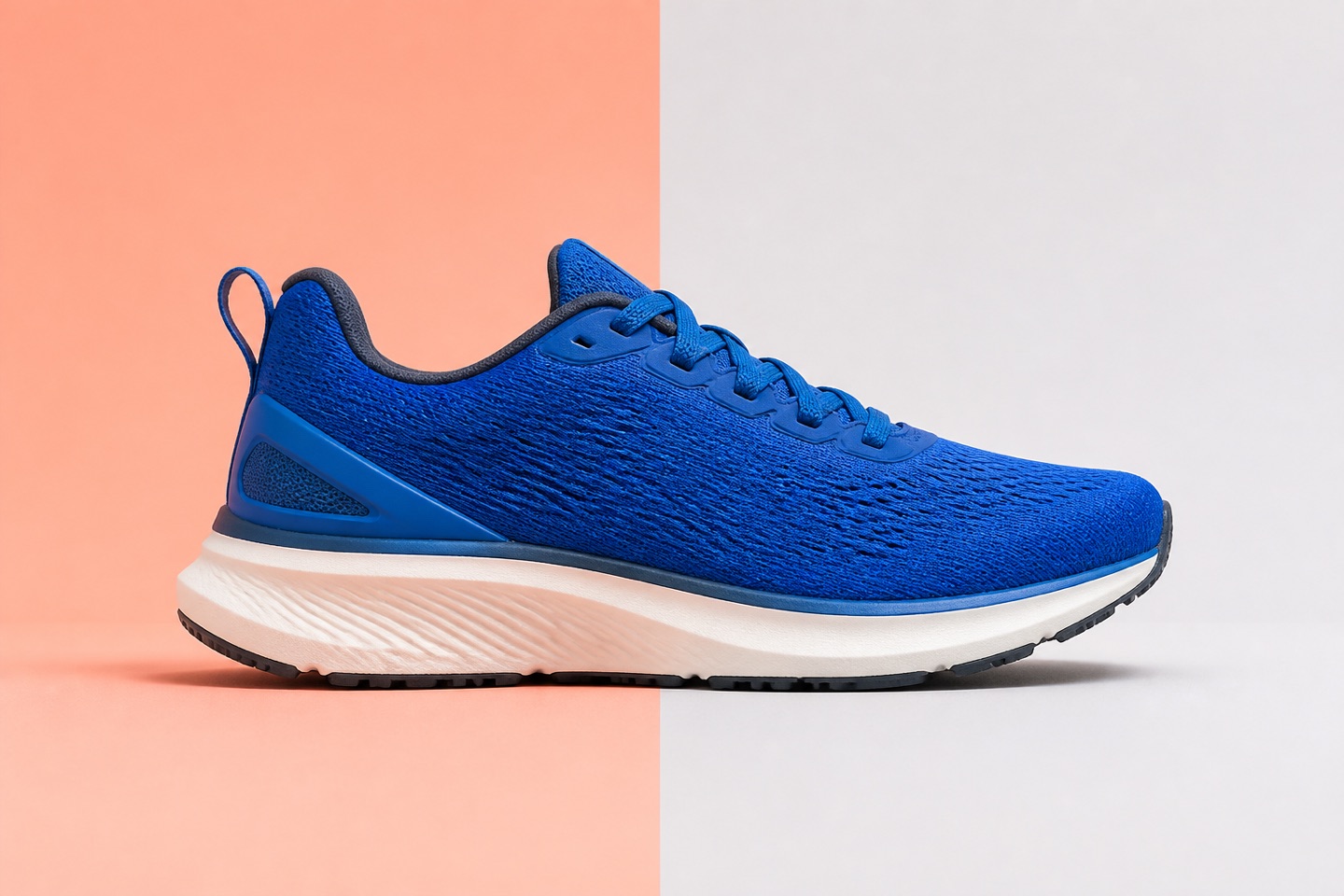
Blue shoe product photo used for an image editing comparisonOriginal photoTransparency preview

The checkerboard is an interface preview for transparency; it is not a processed result.

01

Upload one image

Choose a product shot, portrait, or graphic from your device.

02

Choose an edit

Open the focused tool that matches the image job.

03

Review and export

Check the result, choose a format, and download when ready.

Image tools

Choose the task you need and work in one focused editor.

From image to export.

Start with one image, choose the right tool, and keep signed-in AI jobs organized in task history. Local resize, crop, compression, and conversion tools remain free to use.

Common image workflows

Illustrative examples based on common image jobs.

Prepare a clean product photo, resize it, and export it for the next listing.

Independent marketplace seller

Catalog image workflow

Example workflow

Keep local edits and AI cleanup tools together in one predictable workspace.

In-house content designer

Campaign asset workflow

Example workflow

Review credit costs and keep generated results organized for client delivery.

Small studio owner

Client delivery workflow

Example workflow

Upload another image.

Choose a file to preview locally, then open the editor when you are ready.

or drop an image here

Paste from clipboard · JPG, PNG, WebP, AVIF · up to 20 MB

Frequently asked questions

What happens to my images?
Resize, crop, compression, and conversion tools work locally in your browser whenever possible. AI tools require an upload; processing and retention details are shown before you start.
Which image formats are supported?
Current browser tools accept PNG, JPEG, WebP, and AVIF images up to 20 MB. PNG, JPEG, and WebP exports are available depending on the tool and browser.
Can I use PixelTransform for free?
Yes. Local resize, crop, compression, and conversion tools do not use credits. AI features show any required credits before a job is submitted.
How do credits work?
Credits are used only for clearly marked AI operations. The cost appears before processing, and signed-in users can review their balance and usage in account settings.
Can I process a batch of images?
The current workspace processes one image at a time. Batch workflows are planned; use the single-image tools until that flow is released.
Is there an image processing API?
API key management is available in account settings. Dedicated PixelTransform image endpoints are being prepared and will be documented before public access opens.